

K-WANG


UniOP Universal Operation Panel Installation Guide
UniOP Universal Operation Panel Installation Guide
Core technical specifications of the product
(1) Universal specifications (universal for all models/mainstream parameters)
Key parameter notes for the project
Supply voltage DC 18-30V Industrial DC power supply
Backup battery 3V 270mA lithium manganese battery (CR2430) is non rechargeable and has a lifespan of approximately 1 year. Users can replace it
Fuse 2A T-type partial models (such as ePAD, eTOP series) are overcurrent protection devices without fuses
The protection level IP65 (front panel) must strictly comply with the installation environment requirements to ensure compliance
Working temperature 0~+50 ℃ A6 suffix model 0~+60 ℃, A7 suffix -20~+60 ℃, ePAD/eTOP series 0~+45 ℃
Storage temperature -20~+70 ℃ in accordance with EN 60068-2-14 standard
Humidity requirement 5~85% RH (non condensing) in accordance with EN 60068-2-30 standard
Electromagnetic compatibility emission interference Class A (EN 55011), anti RF/electrostatic/transient interference in accordance with EN 61000 series standards
Key/touch screen lifespan: Key>3 million times, resistive touch screen>1 million times, industrial grade durability
Programming software Designer version 6 is based on Windows system and needs to be compatible with panel firmware
(2) Port General Parameters
PLC Port: Supports RS232/RS422/RS485/20mA current loop, D-15 male, baud rate 300-38400, as the core communication port, can be connected to PLC/controller or used as a UniNET network port.
PC/Printer Port: RS232 protocol, D-15 female header, baud rate 300-38400, can be connected to computer programming or serial printer.
AUX Port: D-9 female head, communication module needs to be selected to achieve industrial network communication. Pin definitions can be found in the module manual.
Foreign key port: Some models support it and can be connected to ET-F/AT-F external keyboards.
(3) Example of Key Parameters for Core Models (excerpt)
table
Model Display Type User Memory 24VDC Maximum Power Consumption (mA) Size (WxHxD, mm) Weight (Kg)
ECT-16 16x40 STN color screen 512KB 500 216x168x82 1.4
ePAD30 30x80 TFT 8MB 700 311x276x100 2.7
eTOP50 48x128 XGA TFT 8MB 1200 392x307x104 3.85
BKDC-16 16x40 STN color screen 512KB 500 216x168x82 1.4
Product installation specifications
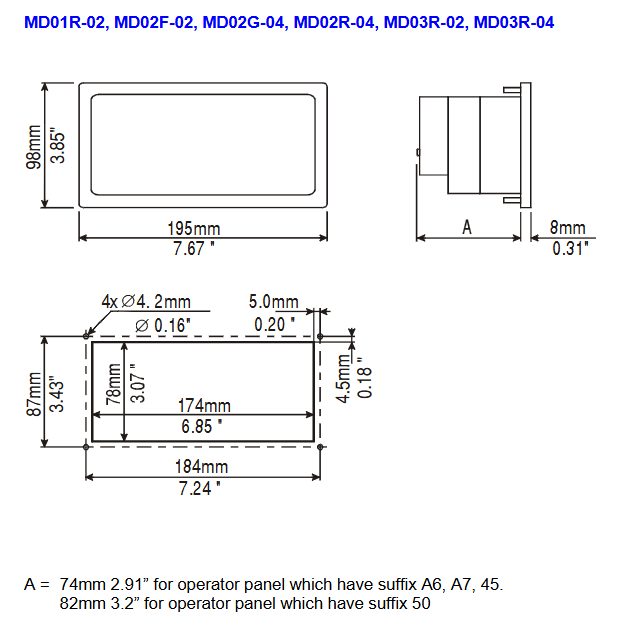
Physical dimension requirements: All installation dimensions are in millimeters, with a tolerance of * * ± 0.5mm * *. The cutting dimensions and panel thickness vary for different models/suffixes (45/50/A6/A7), such as the maximum panel thickness of 8mm for ECT-16 and 9mm for ECT-VGA.
Preparation before installation: Remove the red battery protection strip from the panel, prepare the matching fixed bracket and sealing gasket (rectangular/linear, shipped with model).
Installation of sealing gasket
Rectangular sealing gasket: applied around the cutting edge, without tension, replaced after each disassembly and assembly.
Linear sealing gasket (thin+thick strip): The thin strip fits the cut, and the thick strip is attached to the panel frame, starting from the midpoint/1/3 of the lower side, with no overlap at both ends.
Fixing method: Place the four fixing brackets in the long corners of the panel, tighten the fixing screws until the panel frame contacts the installation surface.
Power supply and grounding (core requirements)
Protective earth (PE) must be connected, which can be grounded through the screw/quick terminal next to the power terminal. Power terminal 3 also needs to be grounded.
The power supply needs to have dual/reinforced insulation, and the power supply circuit can be floating or grounded. The floating circuit is connected to the power supply ground through a 1M Ω resistor and a 10nF capacitor.
Ensure that the power supply meets the power consumption requirements of the panel, and all electronic devices of the control system must be grounded in a standardized manner.
Interface connection and module installation
Port wiring: The layout of ports varies among different models. The location of the core ports (POWER/PLC/PC/AUX) can be found in the corresponding model diagram. The PLC port pins are defined as the core (such as 1-pin chassis ground, 2-pin RXD, 3-pin TXD, 5-pin GND, etc.).
AUX module installation steps
Turn off the panel power; 2) Loosen the two screws on the back cover; 3) Remove the back cover (eTOP/ePAD series pry open from the side slot); 4) Insert the communication module into the red interface and lock it; 5) Reinstall the back cover and tighten the screws; 6) Paste module function labels in the designated area.
No PC/Printer Port model: This type of model uses PLC Port as a PLC/PC composite port, and requires CA2/CA114 cable in conjunction with a gender converter for programming.
Programming cable: The core is CA2/CA114, used for connecting the panel to the computer, with corresponding cross pins (such as panel RXD connected to computer TXD).
Daily maintenance and component operation
(1) Battery replacement
Battery function: Maintain real-time hardware clock, event list, and recipe data. When the battery is low, there are three prompts: FAULT/FLT LED flashes, the system menu displays Battery LOW, and the S6 bit value of RDA changes.
Replacement steps: 1) Power off; 2) Loosen the 4 screws of the battery compartment; 3) Remove the battery compartment; 4) Replace the CR2430 battery; 5) Reinstall the battery compartment and tighten the screws; 6) Power on verification status.
Attention: Battery replacement may result in loss of backup data. It is strictly prohibited to mix battery models. Waste batteries should be disposed of according to regulations to avoid explosion risks.
(2) Other component operations
Dismantling of nameplate: Pinch the exposed part of the nameplate and slide it downwards to remove it. When replacing, use a nameplate of the same thickness and do not thicken it.
Memory card operation: Some models use SSFDC memory cards, and anti-static measures should be taken during operation: clean the gold fingers (soft tissue), avoid finger contact, and place them in an anti-static box after disassembly. Do not wipe with synthetic cloth.
Panel cleaning: Use only a soft cloth and neutral soap to wipe, do not use solvents.
Basic usage and key commands
Operation mode: The core is divided into configuration mode (programming/calibration) and operation mode (normal operation), which can be switched through buttons/touch screen.
Programming requirements
Software: Designer V6 (Windows application, requires separate system installation).
Communication parameters: baud rate 9600 (up to 38400 for PC port models), no parity check, 1 stop bit, software default adaptation.
Connection: Panel cut configuration mode, connect the computer COM1/COM2 port with CA2/CA114 cable.
Button commands: divided into page mode, alarm mode, data entry mode, password mode, etc., with different button functions in different modes; Models without physical buttons (such as ECT-16) use touch screens to implement virtual buttons; Some models do not have CLEAR keys, and functions can be achieved through combination keys. Long pressing the key for 2 seconds can activate special functions (such as ENTER 2s to enter data entry).
Touchscreen model: Comes with default virtual buttons (CLEAR/ENTER), which automatically pop up a numeric keypad when entering data.
Troubleshooting and Calibration
(1) Enter configuration mode
There are button models: Power off → Press and hold any 3 buttons → Power on and hold until the screen displays the configuration mode.
Keyless touchscreen models (ECT-16/ELT-16/RT-16): Power off → Left hand touches the middle left side of the screen → Power on → Right hand touches the middle right side of the screen once per second until configuration mode is displayed.
(2) Touch screen calibration
Standard calibration: Enter configuration mode → touch the CLEAR key on the screen until a small circular mark appears in the upper right corner → long press the mark to the lower left corner → follow the prompts to touch the designated key/ENTER key in sequence until switching back to operation mode.
Emergency calibration: suitable for situations where standard calibration cannot be entered, power off → power on → touch the middle of the screen once per second until entering calibration mode → execute standard calibration steps.
(3) Fault diagnosis of indicator light (core LED)
LED name, color, status, meaning
Fault/FLT red out with no hardware malfunction, battery is normal
Flashing battery low battery
Constant hardware malfunction
RUN green out hardware malfunction
The constantly lit panel is operating normally
COM green flashing communication error (some models)
Always on, communication is normal
ALARM red out with no alarm
Flashing alarm requires confirmation
Constant light alarm activation
Safety and Usage Guidelines
Applicable standards: Following EN 60204-1 (Industrial Control System Safety), EN 61000-6-4 (Emission Interference), EN 61000-6-2 (Anti Interference), the product comes with CE certification.
Operation taboos
It is prohibited to directly control motors, valves, and other actuators without safety protection using panels to avoid danger caused by malfunctions.
It is prohibited to remove the panel back cover when it is powered on. Before operating the live panel, electrostatic discharge treatment must be carried out first.
Do not use tools such as screwdrivers to operate buttons/touch screens to avoid damage.
Environmental taboos: Avoid long-term exposure of panels to direct sunlight (accelerating panel film aging), and prohibit installation in environments that come into contact with corrosive chemicals.

- YOKOGAWA
- Reliance
- ADVANCED
- SEW
- ProSoft
- WATLOW
- Kongsberg
- FANUC
- VSD
- DCS
- PLC
- man-machine
- Covid-19
- Energy and Gender
- Energy Access
- Renewable Integration
- Energy Subsidies
- Energy and Water
- Net zero emission
- Energy Security
- Critical Minerals
- A-B
- petroleum
- Mine scale
- Sewage treatment
- cement
- architecture
- Industrial information
- New energy
- Automobile market
- electricity
- Construction site
- HIMA
- ABB
- Rockwell
- Schneider Modicon
- Siemens
- xYCOM
- Yaskawa
- Woodward
- BOSCH Rexroth
- MOOG
- General Electric
- American NI
- Rolls-Royce
- CTI
- Honeywell
- EMERSON
- MAN
- GE
- TRICONEX
- Control Wave
- ALSTOM
- AMAT
- STUDER
- KONGSBERG
- MOTOROLA
- DANAHER MOTION
- Bentley
- Galil
- EATON
- MOLEX
- Triconex
- DEIF
- B&W
- ZYGO
- Aerotech
- DANFOSS
- KOLLMORGEN
- Beijer
- Endress+Hauser
- schneider
- Foxboro
- KB
- REXROTH
- YAMAHA
- Johnson
- Westinghouse
- WAGO
- TOSHIBA
- TEKTRONIX
- BENDER
- BMCM
- SMC
- HITACHI
- HIRSCHMANN
- XP POWER
- Baldor
- Meggitt
- SHINKAWA
- Other Brands
- UniOP
- KUKA
- IBA
- Beckhoff
- ADLINK
-
FANUC A06B-0169-B088 - AC Servo Motor Alpha M40 3000 3 KW
-
ALPHA WIRE 1299C-SLATE-1000 - Multi-Conductor Cable Wire
-
alpha / Wittenstein SK+180S-MF1-10-1M1-1K - Hypoid Gearbox i=10
-
ALPHA WIRE 1181/40C SL005 - Multi-Conductor Cable Wire
-
Generic / DSI Straight Anatomic Plastic Adapter Head + Screw Hex - Dental Implant Fixture
-
Alpha II-650 MV6500526A - Power Supply Unit
-
ALPHA WIRE 7036 WH001 - Hook-Up Wire
-
FANUC RDCGM00000004O / TP 050-MF1-7-061-000 - Gear Reducer / Alpha Gearbox
-
Alpha II-650 MV6500436A - TDK-Lambda Power Supply Unit
-
Alpha S-Alpha600 J60033 - 600W Switching Power Supply Unit
-
Alpha 1500W J00032 - Power Supply Unit
-
Alpha 600W H60638 - Switching Power Supply Unit
-
Alpha 650 MV6500314A - Power Supply Unit
-
Aloka UST-5413 - Linear Probe for Prosound Alpha 6
-
ALPHA WIRE TFT25015 NA002 - High Temperature Heat Shrink Tubing Wire Sleeving
-
JAVAD ALPHA2 / GrAnt-G3 - GPS Receiver
-
Alpha 400W H47318 - Switching Power Supply Unit
-
Alpha SG-ALPHA-202-001 / Q1001-010-001 - Circuit Board Module
-
Antlia Dual ERF H-Alpha & Cak/CaH - Density Astronomical Accessory
-
ALPHA WIRE 5100C SL033 - Multi-Conductor Cable Wire
-
ALPHA WIRE 5098C-SL033 - Multi-Conductor Cable Wire
-
Fanuc A06B-6290-H105 - Alpha Sv 80hv-B Module Servo Amplifier
-
FANUC A06B-6240-H105 - Aux Axis Alpha aiSV 80 Servo Amplifier
-
Endress+Hauser Alpha-Log RSA10-61B1S / 42974737/0130 - Data Logger Measurement Instrument
-
ALPHA WIRE 6363-SL002 - Multi-Conductor Cable Wire
-
Alpha SP100S-MF1-7-1K1-2S - Gear Reducer
-
Alpha SP 100G-MF1-4-0H1-2S-PGG - Planetary Gear Reducer
-
FANUC A06B-0143-B175 #0275 - Alpha 12/3000 AC Servo Motor
-
James Burn Alpha Doc P33 / GBC PDI - Automatic Punch DocuPunch
-
Titus HVAC 105383-01 - ALPHA BAC Controller and Actuator
-
Wittenstein Alpha SP 100S-MF2-20-0E0-2S - Planetary Gearbox i=20
-
Kashiyama Alpha-85-ZV / SP-8026G - Pump Controller
-
Christ Alpha 2-4 LDplus - Freeze Drier Part N/ 101542
-
Lambda / Alpha H40896 - 400W Power Supply Unit
-
Wittenstein Alpha LP-070S-MF1-3-1E1-38 - Planetary Gearbox
-
Matrox / EXO-2480 133-D06-3 / 398-17962-1 - Alpha Numeric PCB Board
-
Fanuc A06B-6096-H204 - Dual Axis Alpha Servo Amplifier Module
-
Alpha Wire 5002C-SL001 - Multi-Conductor Cable 2 Conductors 22AWG 300VAC
-
Alpha 600W H60638 - Switching Power Supply Unit
-
Alpha Scientific Spin Precession Dual Electro Magnet Beam Line Chamber - Electro Magnet Beam Line Chamber
-
ALPHA WIRE 6017C SL005 - Multi-Conductor Cable Wire
-
ALPHA WIRE 65804 SL002 - Multi-Conductor Cable Wire
-
Fanuc A06B-0152-B010 - AC Servo Motor Alpha A30/2000 with Brake
-
ALPHA WIRE 5856-VI001 - Hook-Up Wire
-
ALPHA WIRE M13142-SL001 - Multi-Conductor Cable Wire
-
Alpha & Omega AOZ1017 - 8-Pin SOIC SMD Buck Switching Regulator IC
-
Alpha 600W H67027 CA600 - 600W Switching Power Supply Unit
-
ALPHA WIRE 2845/7-RD001 - Hook-Up Wire
-
Wittenstein Alpha VH+063S-MF1-10-6H1-1K-0C2 - Worm Gear Reducer i=10
-
ALPHA WIRE 2414C SL022 - Multi-Conductor Cable Wire
-
ALPHA WIRE 5672-SL005 - Multi-Conductor Cable Wire
-
BECKHOFF / Alpha AM8021-0B10-0000 + CP 040-MO1-10 - Servo Motor with Planetary Gearbox
-
ALPHA Systems Lab Inc MBA-WV1-F / PCB-WV1-F - PCB Board
-
FANUC A06B-0826-B201 - Alpha P12 AC Spindle Motor
-
WF & HC / Alpha-E 10045 - Tiller Bar Flat Flange Inlet 3150LB 3X 2.5 Inch
-
Seiler Alpha Air 3 - Dental Microscope
-
Alpha 400W H47223 - Switching Power Supply Unit
-
Wittenstein Alpha SP 180S-MC1-5-1M0-2K - Planetary Gearbox
-
FANUC A06B-6117-H211 - Servo Amplifier Module Alpha iSV 160/160 Amp
-
Alpha S-Alpha600 J60033 - 600W Switching Power Supply Unit
-
Adaptive Alpha Eclipse StreetSmart Model 17X - Master Slave LED Sign 44 x 44 Inch
-
ALPHA WIRE 391697-WH005 / 391697WH005 - Hook-Up Wire
-
Generic 22W Laser Engraver Cutter - Smart Air Pump APP Control CNC Dual-core CPU DIY Tools
-
FANUC A06B-6102-H226 / A06B6102H226 - Spindle Amplifier Module
-
FANUC A06B-6090-H006 / A06B6090H006 - Servo Power Supply Module
-
Alpha Wire Apr-19 - High Low Temperature Cable 75 FT
-
Wittenstein Alpha HG+ 075S-MF2-28-6E1-1S10 - Hypoid Gearbox Reducer i=28
-
Alpha J00032 - 1500W Power Supply Unit
-
Alpha H47038 - 400W Power Supply Unit
-
FANUC A06B-6096-H204 - Dual Axis Alpha Servo Amplifier Module
-
Wittenstein Alpha LPB090-MO1-10-111-00 - Alpha Planetary Gearbox
-
ALPHA WIRE 2842/19-YL001 - Hook-Up Wire
-
WITTENSTEIN ALPHA HG+060S-MF1-56C1-1K00 - Planetary Gearbox
-
Basler A102K Alpha VIS - Black and White CCD Industrial Camera
-
Alpha H40935 - 400W Power Supply Unit
-
FANUC A06B-6114-H207 - 2-Axis Servo Amplifier Module SVM20/40i Alpha i Series
-
TDK-Lambda / Alpha H47318 - 400W Switching Power Supply Unit
-
HITACHI Aloka Prosound Alpha 7 Premier - Diagnostic Ultrasound System
-
Alpha SP100S-MF1-4-1E1-2S - Precision Gear Reducer
-
FANUC A20B-2001-0950 - Control Circuit Board PCB
-
ALPHA WIRE 2855/1-GR001 - Hook-Up Wire
-
FANUC A06B-6096-H204 - Dual Axis Alpha Servo Amplifier Module
-
Wittenstein Alpha LPB090-MO1-10-111-00 - Alpha Planetary Gearbox
-
ALPHA WIRE 2842/19-YL001 - Hook-Up Wire
-
Basler A102K Alpha VIS - Black and White CCD Industrial Camera
-
Wittenstein Alpha LP 090-M01-7-111-000 / Schneider - Gear Box i:7 Schneider Electric Servo Motor
-
LAMBDA ALPHA 600W H60554 - Switching Power Supply Unit
-
Fanuc A06B-0238-B100 / A860-2000-T301 - AC Servo Motor with Encoder
-
FANUC A06B-6290-H322 - ALPHA iSV 10/10/10HV-B 3-Axis Servo Drive
-
Polymotor Italiana 9919 121 90332 / Alpha SP75-M1-3 - D.C. Permanent Magnet Motor with Gearbox
-
MJ Research PTC-200 - PCR DNA Engine Thermal Cycler with Dual 48-Well Alpha Block
-
ALPHA WIRE 5002C-SL002 - Multi-Conductor Cable Wire
-
Fluke / Victoreen ASM 990 / 489-110D - Biomedical Radiation Detector Probe with Pelican Case
-
ALPHA WIRE 5855-BK001 - Hook-Up Wire 22AWG Silver Plated Copper
-
Tetra / Alpha 600W H60552 - Switching Power Supply Unit
-
Bruker Alpha FTIR Spectrometer / Alpha-P ATR - Infrared Spectrometer FTIR Instrument
-
Simagic AlphaM-FX-C 290mm FX-C - Formula Steering Wheel with Alpha Mini Wheel Base
-
Alpha Wire 5152C 20/2C - XtraGuard High Performance Instrumentation/Control Cable
-
ALPHA WIRE 1219/40C SL005 - Multi-Conductor Cable Wire
-
ALPHA WIRE 3131441 TN005 - Multi-Conductor Cable Wire
-
ALPHA WIRE 2172-SV005 - Multi-Conductor Cable Wire
-
FANUC A20B-2100-0742 - ALPHA ia Servo Control Board
-
Olympus Endo Alpha Cart TI-A1 - Medical Equipment Cart with Accessories
-
ALPHA WIRE 74010-BK002 - Multi-Conductor Cable Wire
-
Fanuc A06B-6110-H026#N - ALPHA i Power Supply Module PSM-26i
-
Alpha Laval SX2/013 - Rotary Lobe Pump
-
Alpha II-450P MV4500007B - Switching Power Supply Unit
-
TDK-Lambda / Alpha 400W - Switching Power Supply Unit
-
ALPHA ALPHA6000E-3015GB/3018PB - Frequency Inverter Drive Power Converter
-
ALPHA WIRE 391245-WH005 - Hook-Up Wire
-
Alpha H60562 CA600 - 600W Switching Power Supply Unit
-
Fanuc A06B-0147-B675 - Alpha 22/2000 3.8kW 2000rpm AC Servo Motor
-
ALPHA WIRE 9821 - Twinaxial Cable 1PR 25AWG Poly Insulation
-
Fanuc / Alpha A16B-2203-0820 - ALPHA i Spindle Wiring PCB
-
FANUC A20B-2100-0742 - ALPHA ia Servo Control Board
-
Fanuc A06B-6096-H104 - Alpha Servo Module
-
Fuji Electric RYT202D5-VV2 / Faldic Alpha5 - Servo Amplifier
-
ALPHA WIRE 2817/6 20 AWG - PTFE High Temperature Cable
-
Aloka Prosound Alpha 10 / EU-6031C / JB-274D - High Voltage Power Supply for Ultrasound
-
Wittenstein Alpha SP 140S-MF1-5-01F-2S - Planetary Gearbox
-
FANUC A06B-6124-H205 - Alpha iSV Servo Amplifier Module
-
TDK-Lambda / Alpha MV6500314A - 650W Power Supply Unit
-
TDK-Lambda / Alpha H47318 - 400W Switching Power Supply Unit
-
Alpha H47318 - 400W Switching Power Supply Unit
-
CNC Bearing / Alpha AR090-S1-300-20-N - Robotics Bearing Component
-
Alpha CA400 5A,3.3Q,5B,12/12E / DXH47037 - 400W Power Supply Unit
-
FANUC A20B-2100-0742 - ALPHA ia Servo Control Board
-
Fanuc / Amada A04B-0810-C403 / LC1212 alpha II - Pressure Regulator

K-JIANG

Add: Jimei North Road, Jimei District, Xiamen, Fujian, China
Tell:+86-15305925923